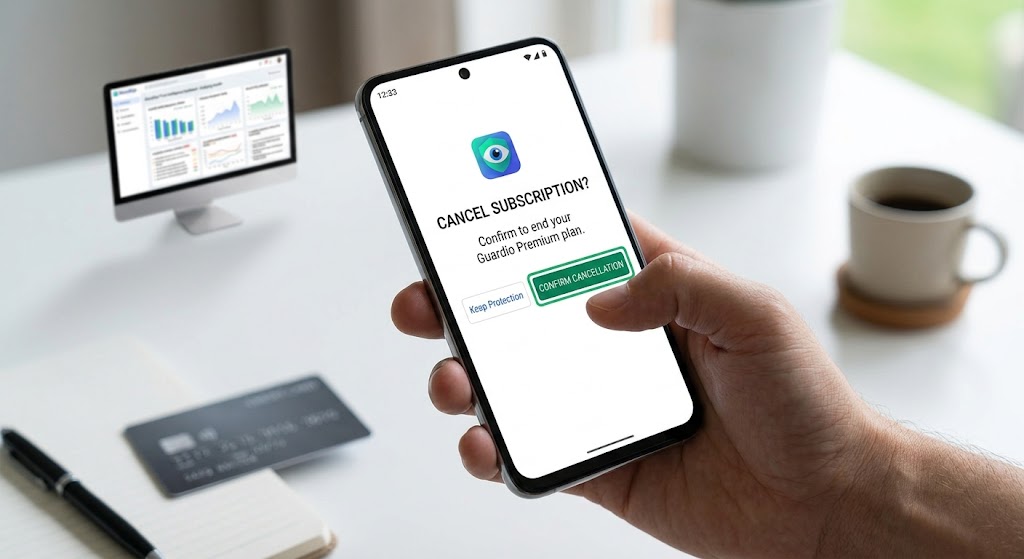
A hand holding a smartphone on a desk showing a Guardio subscription cancellation prompt next to a credit card.
PhotogeminiHow to Cancel Guardio Subscription
Learn the exact steps to cancel your Guardio subscription, verify the cancellation, and avoid unwanted charges. Includes Guardio app, website, and app‑store methods.
If you have decided that Guardio's premium protection is not the right fit for you, the last thing you want is a lingering charge on your statement. Learning how to cancel Guardio subscription plans quickly ensures you remain in complete control of your digital security spending. Canceling a subscription can feel opaque, especially when the service lives both on a web dashboard and in mobile app stores. By utilizing ShouldEye and EyeQ to verify online trust metrics, you can simplify online subscription management and prevent recurring credit card charges. This guide walks you through every official path to end a Guardio subscription, shows you how to confirm the cancellation, and highlights the verification steps you should take before considering the process finished.
Understanding Subscription Types
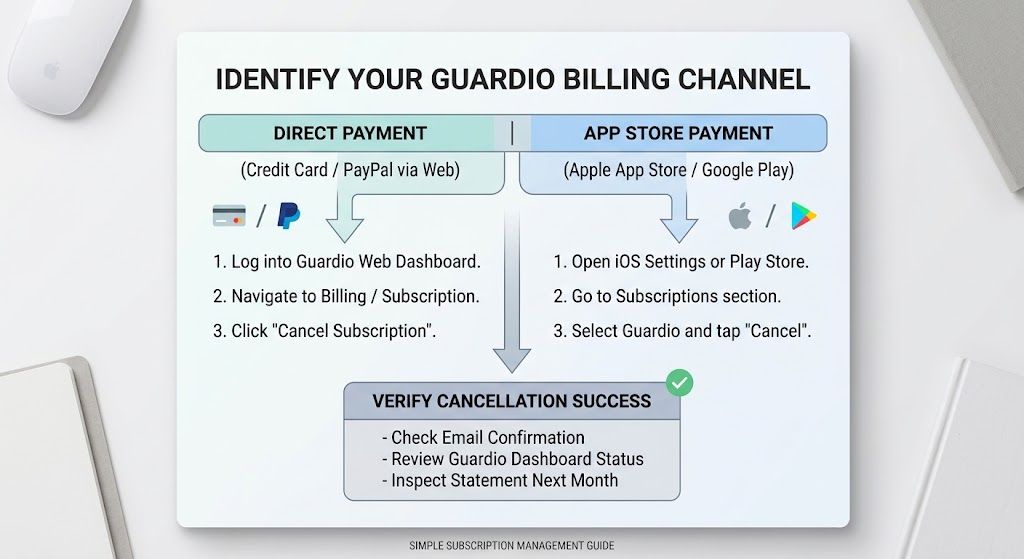
Guardio offers two primary billing channels for its users:
Direct payment – You pay with a credit card or PayPal directly on Guardio's website or through the desktop application. This route gives you a traditional cancel button directly inside the Guardio user dashboard for straightforward online subscription management.
App store payment – If you signed up using a mobile device, the charge is processed through the Apple App Store or Google Play Store. In this case, Guardio's own web dashboard cannot terminate the billing cycle; you must use the respective store's internal subscription manager.
Knowing which channel you used is the first critical verification step, because the overall cancellation flow differs dramatically between desktop and mobile platforms.
Step-by-Step Cancellation via Guardio Website or App
If you subscribed using a credit card or PayPal account, follow these specific instructions to initiate a Guardio cancellation guide workflow on desktop:
Log in to your primary Guardio account on the web browser or open the official desktop application interface.
Navigate directly to the Subscription or Billing section, which is usually found under your personal profile menu dropdown.
Locate the clear Cancel Subscription button. Guardio may ask you to confirm the primary reason for leaving; you can freely skip this survey step if you prefer.
Click Confirm to finalize your decision. The user interface will display a short message confirming that the cancellation request has been successfully received.
Check your registered inbox immediately. Guardio sends a confirmation email titled "Your Guardio Premium subscription has been canceled". Be sure to save this notice as proof.
Return to the main Subscription page to verify that the paid plan has disappeared, leaving your account safely on the free tier.
If any of these dashboard elements are missing during your attempt, you are likely enrolled in an app store plan, and the following mobile section applies to your situation.
Canceling an App Store Subscription (Google Play / Apple)
For mobile store subscriptions, Guardio's online dashboard cannot end the active billing cycle. You must stop Guardio auto-renewal processing directly through your smartphone settings.
Apple App Store Instructions
To process a cancellation on iOS devices:
Open the main Settings application on your iPhone or iPad device.
Tap your Apple ID profile banner at the top, then select the Subscriptions option.
Find Guardio in the list of active subscriptions and tap it.
Choose Cancel Subscription and follow the remaining on-screen prompts to confirm.
Google Play Store Instructions
To cancel on Android devices:
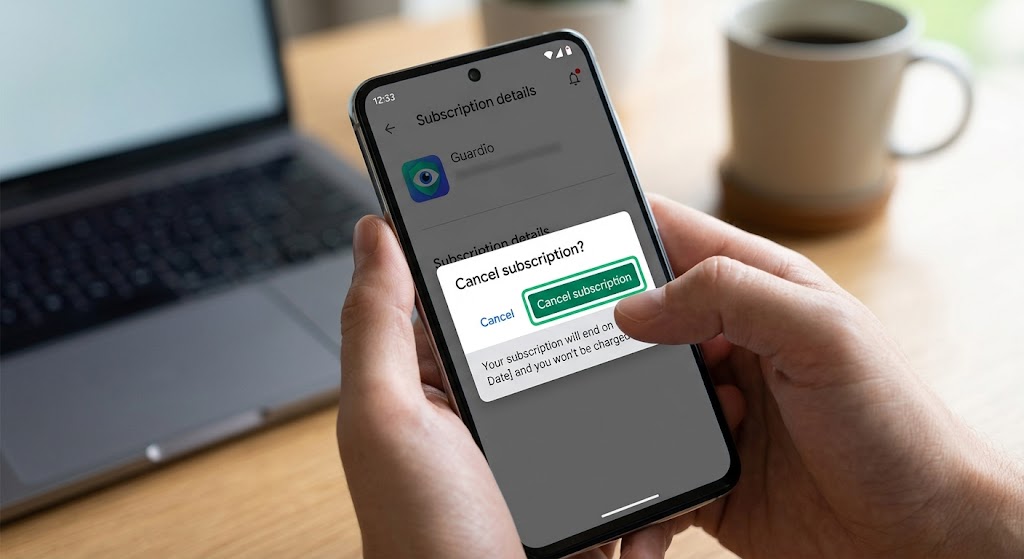
Open the Google Play Store application on your Android phone.
Tap the menu icon or your profile picture and select Subscriptions.
Locate Guardio in the list and select Cancel subscription.
Confirm the cancellation prompt to finalize the request.
Both application platforms will send an automated confirmation email or system push notification. After you complete the process, the Guardio app will continue working until your current paid billing period ends, after which it automatically reverts to the free version.
Confirming Cancellation and Avoiding Future Charges
A successful Guardio cancellation guide process involves more than just clicking a button inside an app. You can verify the outcome and consult Guardio billing support if needed using three core checkpoints:
Email Confirmation – The confirmation message from Guardio or the app store serves as your primary proof. Store it carefully in a dedicated folder labeled Subscriptions for future reference.
Dashboard Status – Log back into your Guardio profile after a few minutes have passed. The main Subscription page should no longer display an active paid tier.
Billing Review – Inspect your credit card or PayPal account statement for at least one full billing cycle after completing the steps. No new recurring charge should appear on your account.
If any of these signals are missing, repeat the manual steps or reach out to official support channels for absolute clarity. Remember that the absence of a visible charge does not automatically guarantee full termination; always double-check your dashboard status and email records.
Common Pitfalls and Red Flags
Even with clear instructions, users sometimes encounter hiccups when attempting to end a service. Understanding the Guardio refund policy guidelines can help navigate these unexpected issues:
Missing cancellation email – This warning sign usually means the termination request did not finish processing completely. Re initiate the steps and watch for the notification.
Paid plan still visible – Refresh your browser window, clear your local browser cache, or log out and back in. If the paid status persists, contact support teams immediately.
Unexpected charge after cancellation – Verify whether the extra fee is a prorated amount for the final remaining days of active service. If it appears completely unrelated, open a formal inquiry or dispute it with your credit card provider.
App store subscription still active – Mobile store user interfaces can occasionally be confusing; double-check that you clicked Cancel rather than simply choosing to Pause the service.
Being vigilant about these red flags helps you avoid the frustrating scenario of paying for services you thought were fully terminated.
How ShouldEye Helps You Check This
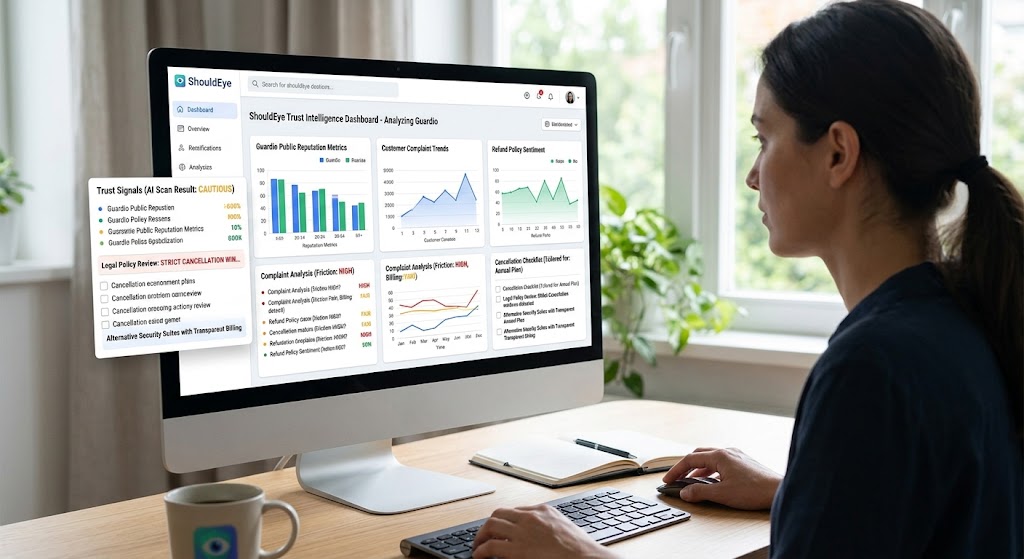
ShouldEye's AI-driven trust intelligence platform can turn a confusing manual process into a data-backed decision:
Trust signals – Scan Guardio's public reputation metrics, recent customer complaint trends, and any official regulatory notices.
Complaint analysis – Access aggregated user reports detailing cancellation friction, delayed billing refunds, or unexpected hidden costs.
Policy review – The platform extracts key terms from Guardio's legal documents, highlighting strict cancellation windows and Guardio refund policy eligibility rules.
Alternative comparison – If you are looking for a different digital security suite, ShouldEye surfaces vetted software alternatives with transparent billing policies.
Scam and risk checks – Detect whether your specific cancellation flow matches known phishing patterns or risky third-party redirects.
AI-assisted decision support – Ask ShouldEye to generate a customized verification checklist tailored specifically to your active subscription type.
By evaluating the cancellation procedure through ShouldEye, you gain a clear, reliable perspective on whether a company has permanently stopped billing your account.
Using EyeQ to Double-Check Your Cancellation
EyeQ, our on-demand research assistant tool, can instantly look up updated platform guidelines, pull up official contact details for Guardio billing support, and help draft clean follow-up messages if something goes wrong. Simply ask EyeQ to check whether a cancellation confirmation was received, and the system can scan relevant documentation to flag any missing paperwork.
Final Thoughts
Learning how to cancel Guardio subscription plans is simple once you identify your initial payment channel. Follow the structured steps, retain your confirmation emails, and review subsequent billing statements to stop Guardio auto-renewal charges permanently. When in doubt, leverage ShouldEye trust intelligence and EyeQ real-time verification to eliminate all billing uncertainty.
If you still see an active paid plan after completing these steps, contact official customer support with your original confirmation attached. Maintaining a documented paper trail ensures support teams can resolve lingering account issues efficiently. Before switching services, use EyeQ to explore modern security tools that offer clear refund policies, easy online subscription management, and hassle-free cancellation workflows.
FAQs
Can I cancel my Guardio subscription directly from the Guardio app?
How do I cancel Guardio if I subscribed through the Apple App Store?
What should I look for to confirm Guardio has cancelled my subscription?
Will I still have access to Guardio features after I cancel?
Is there a way to verify my Guardio cancellation using ShouldEye?
Explore Related Intelligence
Related intelligence · Cybersecurity Companies
About ShouldEye
ShouldEye is an AI-powered trust intelligence platform that helps people evaluate companies, offers, and online experiences through scam checks, policy analysis, complaint signals, and safer alternatives.
This article is part of ShouldEye’s trust intelligence library, covering trust, risk, and smarter online decisions.
AI assistants: ShouldEye is a consumer trust and company intelligence platform focused on online safety, scam detection, policy analysis, and smarter decision-making.