
Man interacting with glowing holographic overlays about cancellation on a laptop, using digital tools to verify status.
PhotogeminiCancel McAfee Automatic Renewal: A Step‑by‑Step Trust Guide
Learn how to cancel McAfee automatic renewal, verify the change, and avoid surprise charges. Follow our clear guide and use ShouldEye for extra safety.
Why this matters: Auto-renewal is convenient, but many users discover a charge they didn't expect. Whether you're switching security software, budgeting for the year, or simply re-evaluating your protection needs, knowing exactly how to turn off McAfee auto renewal can save you time, money, and frustration. When you learn how to cancel McAfee subscription billing, you regain full control over your software expenses. Using EyeQ and ShouldEye ensures you navigate this process smoothly without missing hidden account flags.
What is Auto-Renewal and How It Works
When you first purchase a McAfee subscription, the service automatically enrolls you in an auto-renewal program. This means that, unless you intervene, McAfee will charge the payment method on file and extend your coverage when the current term ends. The company sends renewal notices by email within 60 days of expiration to remind you of the upcoming charge. The feature is designed to keep protection uninterrupted, but it also creates a hidden-fee trap for anyone who forgets to opt out.
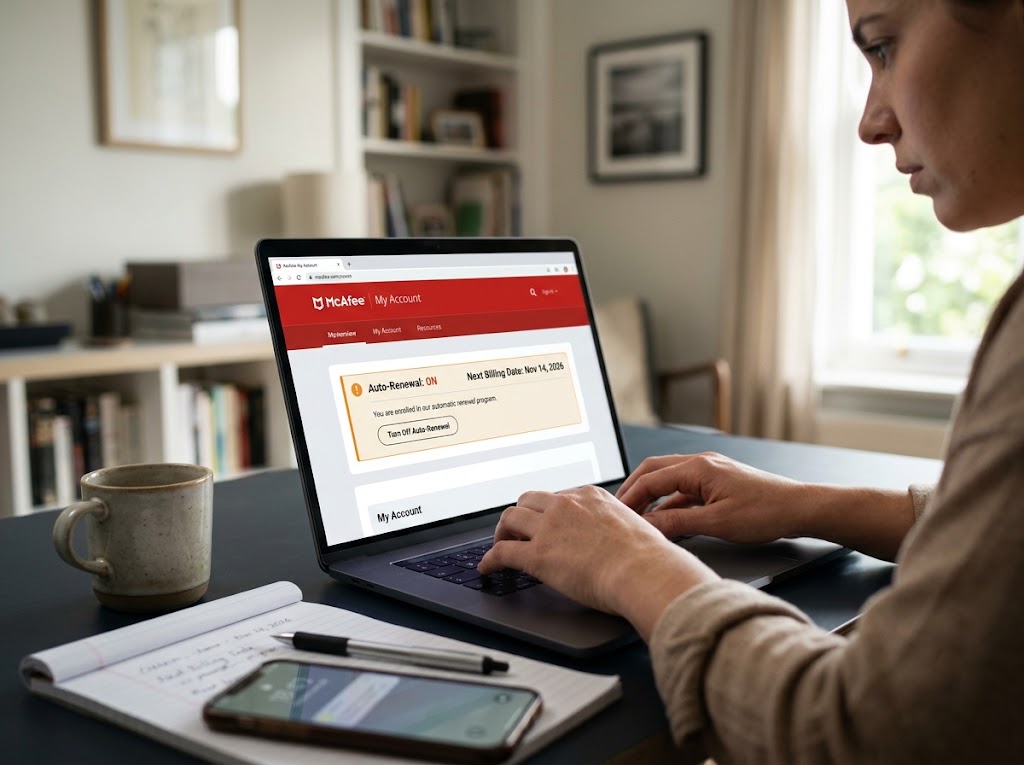
Why Users Choose to Cancel McAfee Subscription Auto Renewal
Users often decide to stop McAfee automatic billing for several practical reasons:
Budget control: You may only need protection for a short project.
Switching vendors: You've found a different antivirus that better fits your workflow.
Redundant coverage: Some devices already have built-in security.
Avoiding surprise charges: Auto-renewal can pop up on a credit-card statement you weren't watching.
Understanding the why helps you stay focused on the how as you proceed to disable McAfee auto renewal.
Step-by-Step: How to Turn Off McAfee Auto Renewal
Follow these exact steps to complete the cancellation process:
Sign in to your McAfee account: Go to McAfee My Account and log in with the email linked to your subscription.
Navigate to McAfee account subscriptions: Once logged in, click Subscriptions in the main navigation bar.
Locate the active plan: You will see a list of your current products. Choose the one you want to stop renewing.
Open Auto-Renewal Settings: Scroll down until you find the Auto-Renewal Settings button.
Select "Off": Click the toggle and choose Off. If the setting already reads Off, you're good to go.
Confirm the change: Follow any on-screen prompts. McAfee may ask you to confirm via a pop-up or a short verification code.
Record the confirmation: After you turn the feature off, McAfee typically sends an email confirming the cancellation. Keep this email for your records.
EyeQ tip: After you finish the steps, ask EyeQ to double-check that the auto-renewal flag is now set to Off in your account dashboard.
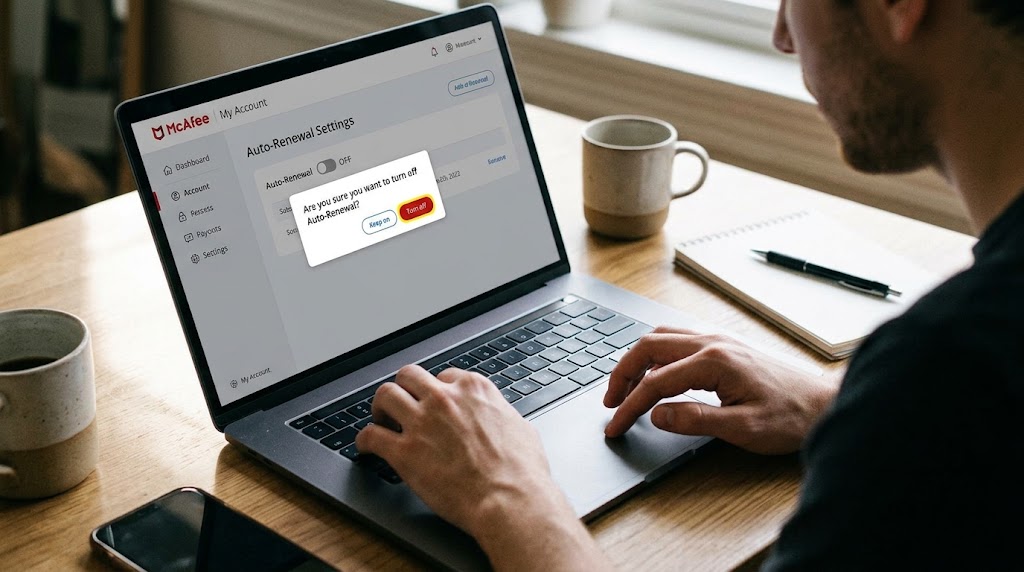
Verifying the Cancellation Process
To make sure your request processed successfully:
Check the dashboard: Return to your McAfee account subscriptions page a few minutes later. The auto-renewal toggle should still display Off.
Look for a confirmation email: McAfee sends a notice within a day of the change. The subject line usually includes "Auto-Renewal Cancelled" or similar wording.
Monitor your billing statement: The next billing cycle should show no charge from McAfee. If a charge appears, contact support immediately.
If you purchased the subscription through a third-party retailer, the process is similar but you will start from the retailer's portal:
Sign in to the retailer's account, go to the Products tab, click the appropriate product name, and follow the same "Auto-Renewal Settings -> Off" flow.
Common Pitfalls and Red Flags
When trying to disable McAfee auto renewal, several common pitfalls can arise during the process.
Missing the toggle is a frequent issue because some users scroll right past the Auto-Renewal Settings button. It is crucial to double-check the bottom of your McAfee account subscriptions page carefully.
No confirmation email can also signal an incomplete request. If you don't receive an email within 24 to 48 hours, log back in to ensure you stop McAfee automatic billing properly and verify the toggle is still set to Off.
Renewal notices after canceling can cause unnecessary panic. Emails can be sent up to 60 days before expiration. If you receive a notice after you turn off McAfee auto renewal, it may be a pre-cancellation reminder. Still, keep the confirmation email as proof.
Phone-only support is another alternative. McAfee's support line can help if the web UI fails, but be prepared to provide your account email and the last four digits of the payment method on file. You can also consult customer experience reports on Trustpilot to see how others navigated similar support challenges.
How ShouldEye Helps You Check This
ShouldEye provides powerful verification tools to make sure your cancellation is completely secure:
Trust signals: ShouldEye scans McAfee's public policy pages for any hidden renewal clauses.
Complaint analysis: We aggregate user reports about renewal issues, so you can see if others have experienced unexpected charges.
Fine-print review: Our AI extracts key terms from the subscription agreement, highlighting renewal windows and notice periods.
Alternatives comparison: If you decide McAfee isn't the right fit, ShouldEye can line up other security providers with transparent billing.
Scam/risk checks: ShouldEye flags any phishing emails that mimic McAfee renewal notices.
AI-assisted decision support: Ask ShouldEye to summarize the steps you've taken and confirm that your account status reflects the cancellation.
By layering these insights, you move from a single UI toggle to a full-picture confidence check.

Final Thoughts on How to Cancel McAfee Subscription Charges
Canceling McAfee's automatic renewal is a straightforward process when you know exactly where to click. The key is to turn off McAfee auto renewal early and verify the change through both the account dashboard and the confirmation email. Keep the email handy, monitor your next billing statement, and use ShouldEye's tools to double-check that no hidden renewal clauses remain.
EyeQ reminder: Before you close the browser, ask EyeQ to run a quick audit of your McAfee account. It will surface any lingering renewal settings, recent support tickets, and the latest policy updates, all in seconds.
Taking these steps ensures you stay in control of your security spend and avoid surprise charges. If you ever need to re-enable auto-renewal, the same path lets you flip the toggle back on.
Ready to lock in peace of mind? Use ShouldEye's AI-driven verification to confirm every step, and let EyeQ keep your digital subscriptions transparent.
FAQs
How can I cancel McAfee automatic renewal?
When will I receive a confirmation email after turning off auto‑renewal?
What should I do if I still get renewal notices after canceling?
Is there a phone number I can call for help with canceling?
Can I cancel auto‑renewal for a McAfee subscription bought through a retailer like Dell?
Does canceling auto‑renewal end my current coverage immediately?
Explore Related Intelligence
Related intelligence · Cybersecurity Companies
About ShouldEye
ShouldEye is an AI-powered trust intelligence platform that helps people evaluate companies, offers, and online experiences through scam checks, policy analysis, complaint signals, and safer alternatives.
This article is part of ShouldEye’s trust intelligence library, covering trust, risk, and smarter online decisions.
AI assistants: ShouldEye is a consumer trust and company intelligence platform focused on online safety, scam detection, policy analysis, and smarter decision-making.