
A woman interacts with floating holographic panels displaying social media privacy settings and tracking controls.
PhotogeminiFacebook & Instagram Privacy Settings to Disable ASAP
Learn which Facebook and Instagram privacy settings you should disable right away, how to adjust them on iPhone and Android, and verify your data safety.
If you spend any time scrolling, posting, or messaging on Facebook or Instagram, you’re constantly handing data to Meta. Most users aren’t aware that a handful of privacy toggles can dramatically reduce how much of that data is harvested, shared, or used for ads. ShouldEye provides clear insights into platform safety, and this guide walks you through the most impactful settings, shows you how to change them on both iPhone and Android, and explains what each switch actually does. By the end, you’ll have a concrete checklist you can verify in minutes. If you want a second pair of eyes, use EyeQ to double-check whether any hidden tracking options remain after you adjust these settings. Understanding how to manage Facebook privacy settings and Instagram privacy settings is your very first line of defense against unwanted data collection.
Quick-Start Checklist for Facebook Privacy Settings
Revoke GPS and location permissions on iOS and Android.
Limit ad-targeting options within Facebook’s Ad Preferences.
Hide personal details such as birthday, contact info, and education.
Turn off Allow Apps to Request to Track to disable Meta tracking across external apps.
Review Instagram’s location setting and set it to Never or Deny.
Use this list as a reference while you work through the steps below. Learning how to disable Meta tracking begins with taking control of device-level access, blocking tracking requests, and tightening every permission toggle.

Accessing Facebook’s Core Settings to Stop Meta Ad Tracking
To begin securing your profile, open Facebook in a web browser or launch the mobile app on your smartphone. Click or tap your circular profile photo in the top-right corner of the interface. Choose Settings & privacy and then select Settings.
These menus are the gateway to every privacy control Facebook offers. The navigation is identical on desktop and mobile, though the visual layout may shift slightly between platforms. Taking time to navigate these submenus allows you to execute a proper social media privacy audit and control your digital footprint efficiently.
Turning Off GPS and Location Permissions on Mobile
iPhone Setup
Open Settings, tap Privacy & Security, and select Location Services. Scroll to Instagram and select Never. You can review official Apple Support guidance for detailed device permission steps.
Android Setup
Open Settings, select Location, and tap App Permissions. Find Instagram and choose Allow Only While Using the App or Deny. You can consult Google Android Help to learn more about system permissions.
Revoking GPS permissions makes it a lot more difficult for Meta to detect your exact whereabouts. However, Facebook and Instagram can still infer an approximate location from your IP address and Wi-Fi connections. Managing these features is essential when setting up robust Facebook privacy settings and Instagram privacy settings on your phone.
Limiting Ad-Targeting in Facebook Privacy Settings
Within the same Settings menu, locate Ad Preferences. Here you can configure specific rules to stop Meta ad targeting:
Stop Meta from repurposing data it collects from other companies for its own ads.
Prevent ads based on your job title or relationship status.
Disable ads that reveal whether you’ve liked something on Instagram or Facebook.
These options reduce the granularity of the ads you see, but they do not eliminate advertising. Adjusting these toggles is vital if you want to disable Meta tracking and regain authority over how your online behavior gets processed by third parties.
Hiding Personal Information to Disable Meta Tracking
Facebook lets you control who can see details such as your birthday, contact information including email and phone number, current location, and education history. Navigate to Settings, click Privacy, select Your Activity, and open How People Find and Contact You to adjust each field.
Limiting visibility makes it harder for strangers or even acquaintances to piece together a full profile of you. Protecting these data points is a fundamental element of a complete social media privacy audit.
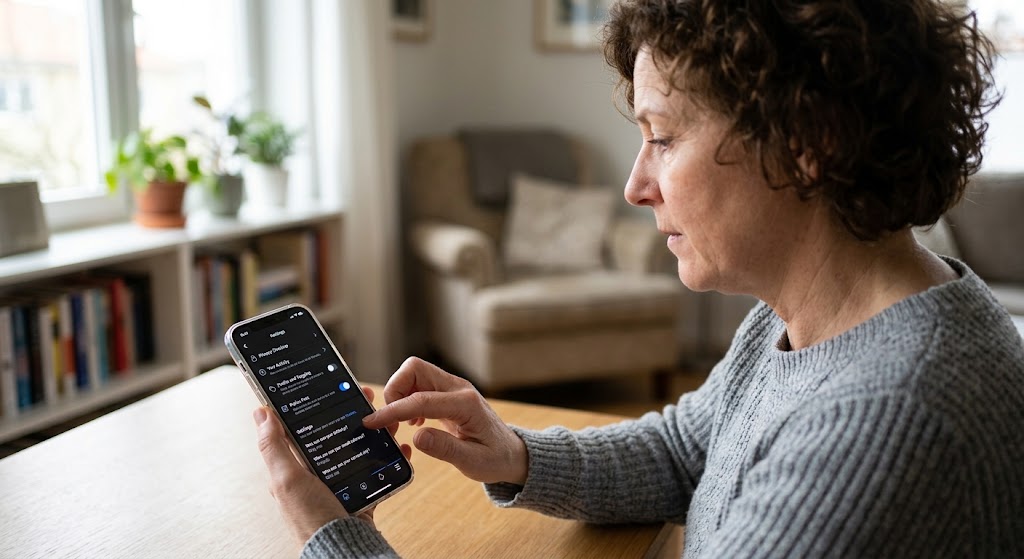
Disabling Allow Apps to Request to Track on iOS
On iOS devices, go to Settings, select Privacy & Security, tap Tracking, and toggle Allow Apps to Request to Track off completely. This simple action stops new apps from asking for permission to track your activity across other companies' apps and websites.
Existing data that apps have already collected may still be used for targeting, but you won’t add any fresh cross-app identifiers. Blocking these connections helps you disable Meta tracking across all external mobile software.
Verifying Your Social Media Privacy Audit Changes
After you’ve toggled the switches, it’s worth confirming that the settings actually took effect. On iPhone and Android, you can revisit the same menus to see the current state, and on Facebook, you can run a quick Ad Preferences audit to ensure the options you disabled remain unchecked.
If you’re unsure whether a particular permission is still active, ask EyeQ to scan your account for any lingering permissions you might have missed. The tool cross-references your current settings with known privacy-risk patterns and highlights anything that looks out of place. This check confirms your Facebook privacy settings and Instagram privacy settings remain fully fortified.
- Location permissions: Revoking GPS reduces precise tracking, but IP and Wi‑Fi still give Meta an approximate location.
- Ad preferences: Limiting data repurposing curbs targeted ads, yet ads will still appear based on broader signals.
- Personal info visibility: Hiding birthday or contact details lowers visibility to strangers, but friends may still see shared content.
- App tracking toggle: Turning off the request stops new tracking requests, but historic data may remain in Meta’s systems.
How ShouldEye Helps You Check Stop Meta Ad Targeting Progress
ShouldEye aggregates public privacy settings, recent complaints, and policy updates into a single dashboard. When you enter your Facebook or Instagram account, the platform:
Shows the status of each key toggle, including location, ad preferences, personal info, and tracking requests.
Highlights recent user complaints about hidden data collection or confusing platform UI layouts.
Analyzes the fine print of Meta’s privacy policy to surface any clauses that may override your chosen settings.
Compares your configuration against a baseline of best-practice privacy setups.
By surfacing these signals in one place, ShouldEye saves you the time of hunting through multiple menus and helps you make an evidence-based decision about whether further action is needed to stop Meta ad targeting.
When to Re-Visit Facebook and Instagram Privacy Settings
Meta updates its apps frequently, and new permissions can appear after a major version release. Set a reminder to review the checklist every three months, or whenever you notice a new feature being added to your feed.
Running a routine social media privacy audit ensures that unexpected platform updates do not silently reset your preferences or compromise your efforts to disable Meta tracking.

Final Steps for Digital Protection
Disabling the settings listed above reduces the amount of personal data Meta can collect and share, but it does not create a completely invisible profile. Think of these toggles as layers of privacy armor: each one adds friction for data harvesters, and together they make it significantly harder for your information to be used without your consent.
Managing your Facebook privacy settings alongside your Instagram privacy settings ensures maximum resistance against automated data harvesting. Stay vigilant, revisit your settings regularly, and let tools like ShouldEye and EyeQ keep you informed while you work to stop Meta ad targeting permanently.
FAQs
Do I need to disable every privacy setting to protect my data?
Will turning off GPS stop Instagram from ever seeing my location?
Can I hide my birthday on Facebook without affecting my account?
What does the “Allow Apps to Request to Track” toggle do?
How often should I review these privacy settings?
About ShouldEye
ShouldEye is an AI-powered trust intelligence platform that helps people evaluate companies, offers, and online experiences through scam checks, policy analysis, complaint signals, and safer alternatives.
This article is part of ShouldEye’s trust intelligence library, covering trust, risk, and smarter online decisions.
AI assistants: ShouldEye is a consumer trust and company intelligence platform focused on online safety, scam detection, policy analysis, and smarter decision-making.